Demo Environment
The Sustentus demo environment provides a fully functional preview of the platform with pre-populated sample data. This guide covers setup, configuration, access, and usage of the demo environment.
Overview
This page covers how the demo environment is provisioned, accessed, reset and presented. For what is actually in it — every fictional company, person, engagement and number — see Demo tenant data.
The demo environment is a special tenant instance marked with isDemo: true that allows users to explore the platform’s features with realistic sample data. It includes:
- Pre-populated data: Leads, chats, proposals, quotes, invoices, CSAT records, activities, and more
- Multiple user roles: Admin, Manager, CSM, SDM, Expert, and Customer perspectives
- Purge-and-reseed reset: Returns the tenant to the approved storyline between client sessions
- Full feature access: All platform capabilities available for exploration
Setup
Demo Tenant Configuration
Demo tenants are identified by the isDemo: true flag in the Tenant model. This flag enables:
- Demo data seeding
- Purge-and-reseed reset (the flag is what the reset refuses without)
- Presenter persona switching
- Special admin controls
Provisioning runbook
The canonical sequence for standing up the demo tenant in production. Order matters: the tenant document is created lazily on first sign-in, and the flag migration fails loudly if the tenant does not exist yet.
-
Create the demo Clerk organisation in the production Clerk instance. Note its organisation ID (
org_…) — it becomesDEMO_TENANT_CLERK_ORG_ID. -
Check the organisation’s role keys and seat limit.
pnpm demo:roster(step 9) adds twenty members, so before it runs, in this Clerk instance:- Organizations → Roles must define
org:admin,org:csm,org:sdm,org:vendor,org:expertandorg:customer. Onlyorg:customerexists by default — hence theCLERK_ORG_CUSTOMER_ROLEoverride for that one. A missing role key is the first of the two ways Clerk rejects provisioning, and the script names it in the error rather than leaving you a bare 422. - The organisation’s maximum membership count must exceed twenty.
- User & authentication must offer at least one non-password sign-in method (for example email magic link), so accounts can be created without a password. That is the second way Clerk rejects provisioning.
Both Clerk instances need this — preview and production are separate instances, and the roster is provisioned into each independently.
Dormant accounts cost nothing: Clerk bills monthly actives, and View As never signs anyone in.
- Organizations → Roles must define
-
Create the admin Clerk user by hand, with the
org:adminrole, and note its address. This is the only account created manually — it exists to bootstrap the tenant document, which does not exist until somebody signs in. It is the presenter’s login, and it is also the account the demo host’s Enter the demo control signs visitors in as (see Automatic sign-in below) — so note its Clerk user id too, not just its address.Fictional identities only — never real prospect or client names. Set the name in Clerk exactly as the active storyline names that seat: Clerk owns identity from here, and the
user.updatedwebhook mirrorsfirstname,lastname,emailandavataronto the app-user row. The roster script sets these on every account it creates, so only this hand-made one has to be typed correctly.Persona Name Role in the storyline admin Alex Rendell Presenter; administers the tenant csm Sofia Almeida CSM — owns customer relationships sdm Ben Hartley SDM — owns delivery expert Elin Bergqvist Expert — implementation lead, Orrery Core vendor Orrery Software The vendor the demo is told from customer Anneke Vos Operations Director, Havenbrook Retail Group — the anchor account The table names the six seats a walkthrough visits; the roster is twenty, the other fourteen being the storyline’s remaining customers and experts.
The exact sign-in addresses are deliberately not published on this page — read them from the storyline (
packages/services/src/db/services/demo-data/storyline/saas-vendor.ts, exported asdemoStorylinefromstoryline/index.ts). Every address follows one convention,jamie.nisbet+<lastname>.<role>@sustentus.com, androsterOf(demoStoryline)(storyline/roster.ts) derives the twenty from the storyline’steam,accountsandexperts— there is no second list to keep in step. -
Sign in once as the admin on
platform.sustentus.com. This is what creates the tenant document (tenantService.upsertFromClerk) — nothing else does, which is why one manual sign-in survives. Verify: no/no-role, no onboarding trap. -
Set
DEMO_TENANT_CLERK_ORG_IDto the org ID from step 1 as a variable on the GitHub Actions production environment — that is where migrations run (db-migrate.yaml), not Vercel; no app-runtime code reads this variable today. It must be set before the flag migration merges: an unset variable makes the migration no-op, and ts-migrate-mongoose still records it as applied, so it will not re-fire on a later deploy. (CI-only, so deliberately not inturbo.json→globalEnv— the migration runner never goes through a turbo task.)The preview environment carries its own copy of this variable, set to the preview instance’s own demo org. The two are different orgs, and each migration job resolves only its own environment’s value.
-
Merge to
main. The migration1786492800000-flag-demo-tenant.tsruns viadb-migrate.yamland setsisDemo: trueon the tenant matching the configured org ID. It is idempotent, and fails loudly if the tenant is missing — re-check step 4 if it does (the sign-in is what creates the tenant), then re-run the job (workflow_dispatch); a failed run is not recorded, so the re-run applies it. Note that while it stays failed, later pending migrations from unrelated merges are held up behind it.A second migration,
1786579200000-reflag-demo-tenant-preview.ts, re-asserts the same write. It exists because the original had already been recorded as applied against the preview database while the variable was still production-only, and an applied migration never re-fires. Configuring a new environment from scratch needs no thought about this: both simply run in order. -
Verify the flag:
tenantService.isDemoTenant(tenantId)returnstrue(or check thetenantscollection directly). -
Provision the roster, with
CLERK_SECRET_KEYpointed at this environment’s Clerk instance. This comes before the first seed: the seeder attaches every seat to a real Clerk-backed user and creates nobody, so it refuses outright on a tenant whose roster is not yet in place.pnpm --filter @sustentus/services demo:roster --check # report, write nothing pnpm --filter @sustentus/services demo:roster # provisionThis replaces what used to be twenty hand-made Clerk accounts and twenty sign-ins per instance. For each of the twenty seats it resolves or creates the Clerk user, ensures organisation membership with the mapped
org:<role>, and writes the app-user row — without anyone signing in, which is the point: before this, a sign-in was the only thing that turned a Clerk account into an app-user row, so fourteen of the twenty could not be viewed as at all.Order no longer matters beyond this. The seeder writes each person’s storyline attributes — a customer’s company, country and industry; an expert’s position, bio, skills and products — on every run rather than only at creation, so a row the roster made first is dressed by the next seed rather than left bare. Identity stays Clerk’s: no run writes anyone’s name, email or avatar.
Re-running is always safe: a second run reports every seat already present and writes nothing. A name corrected in the storyline is pushed to both Clerk and the row on the next run, so the roster stays the one list nothing drifts from.
It refuses rather than half-provisioning: a tenant not flagged
isDemo: true, or noCLERK_SECRET_KEY, stops the run. With more than one demo tenant it asks for--tenant <id>.--checkalso names anyone in the organisation who is not on the roster — which is how the supersededdemo+…@apoyar.euaccounts show up. Removing those from Clerk is a manual tidy-up; their app-user rows carry aclerkUserId, so the demo reset keeps them and they linger in the directory until deleted by hand. -
Run the first seed signed in as the demo admin: Configure > Demo data (
/admin/demo-data) → Populate demo data. This fills the tenant with leads across all nine stages and dresses each roster member with their storyline attributes (see Populating Demo Leads). Ifdemo:roster --checkdid not report clean at step 8, this refuses before writing anything and names the seats it could not fill.
Access
Demo Environment URL
The demo tenant is served by the apps/web deployment at two addresses:
https://platform.sustentus.com   # the ordinary platform host
https://demo.sustentus.com       # the demo host
Both serve the same deployment. Only the front door differs: on the demo host an
unauthenticated request lands on the public demo entry page at /demo instead of
/sign-in, and demo-host responses carry X-Robots-Tag: noindex, nofollow so the address
stays out of search results. Once a session exists the two hosts are identical — role
resolution, route policies, View As and the onboarding gates all behave the same, because the
host is read only before the sign-in check.
Which hostnames count as the demo host is configuration rather than a literal: DEMO_HOSTS on
the apps/web project is a comma-separated allowlist. Unset, no host is a demo host and both
addresses behave exactly as the platform host always has.
On a preview deployment — whose URL is minted per commit and can never be in the allowlist —
append ?demo=1 to any path to put the browser on the demo branch, and ?demo=0 to take it
off again. The override is a cookie, and it is hard-off in production: there, allowlist
membership is the only thing that makes a request a demo request.
Standing the demo host up
Once per Vercel/Clerk environment:
- Add
demo.sustentus.comin theapps/webproject’s Settings > Domains and configure DNS. - Set
DEMO_HOSTS=demo.sustentus.comin that project’s Production environment. - Redeploy.
DEMO_HOSTSis read when the app is built — thenext.config.tsheader rule bakes it into the routing manifest — so changing the variable alone does nothing until the next deployment. This is the one way the rollout can look broken while everything is correct. - Confirm the production Clerk instance’s allowed origins include the new host, if that list is restricted. Nothing else in Clerk changes: session cookies are shared across subdomains of one root domain, and satellite domains apply only to a different root domain.
Because that cookie is shared across sustentus.com subdomains, a session started on either host
is visible on the other.
The access gate
The demo host is dark. A request that has not passed the gate sees one thing — a challenge asking for a handle and the current six-digit code from an authenticator app. Not the entry page, not the app, not which paths exist behind it.
That is a stronger control than the Clerk sign-in guarding platform.sustentus.com, and it has to
be: on the demo host there is no password to be wrong. The session waiting behind the door is a
platform admin nobody signs in to, so what needs protecting is the whole host.
A curated roster — the internal team plus named partners — enrol a TOTP secret once, out of band.
How it is composed
| Piece | What it is |
|---|---|
| The roster | DEMO_ACCESS_ROSTER — comma-separated handle:BASE32SECRET. Handles are lowercase and unique |
| The challenge | /demo/access, answered by POST /api/demo/access |
| The check | RFC 6238 TOTP — SHA-1, six digits, a thirty-second step, one step either side for clock skew, compared constant-time |
| The cookie | handle + expiry, signed HMAC-SHA-256 with DEMO_ACCESS_SECRET; HttpOnly, Secure, SameSite=Lax, twelve hours |
The cookie is host-only — set with no Domain attribute, so it is never sent to
platform.sustentus.com, which shares the parent domain. Verifying it also re-checks the roster,
so taking someone off ends their access rather than waiting out their cookie.
Enforcement happens twice, because a route handler must not trust the layer in front of it.
proxy.ts rewrites every ungated demo-host request to the challenge — a rewrite rather than a
redirect, so the visitor keeps the URL they asked for and the host discloses nothing by the address
bar either — and answers /api/** with a bare 404. /api/demo/enter then re-checks the gate for
itself, as a fifth refusal (not_gated) ahead of the four below.
The self-authenticating public routes pass the gate untouched: /api/cron/** and
/api/webhooks/clerk/**. demo.sustentus.com and platform.sustentus.com are two domains on one
Vercel project, so a cron invocation can arrive carrying either Host — and the nightly demo reset is
itself a cron. Each of those routes checks its own CRON_SECRET bearer or svix signature, so
letting them past widens nothing.
Guessing is bounded two ways: ten attempts per five minutes per client address, five per five
minutes per handle, the second charged before the secret is looked up so a distributed grind against
one person is bounded too. An accepted code cannot be replayed inside its window. Every refusal is
identical — unknown handle, wrong code and replay all return the same invalid at the same status,
in the same time — so the roster cannot be enumerated from the responses.
It fails closed, and it needs a redeploy
Two properties are worth stating plainly, because both invert what the rest of this page would lead you to expect.
Unset means nobody, not everybody. DEMO_HOSTS and DEMO_AUTO_SIGN_IN are written so an unset
variable behaves as though the feature never existed. Here “as before” would mean the demo host wide
open, so an unset, empty or malformed DEMO_ACCESS_ROSTER or DEMO_ACCESS_SECRET admits nobody
and the challenge says the environment is not available. A single malformed roster entry refuses the
whole roster rather than dropping a line — a half-parsed allowlist is what nobody notices until the
wrong person is inside.
Changing the roster takes a redeploy. proxy.ts runs on the edge, where Next inlines
process.env at build time — the same reason step 3 of the runbook above says DEMO_HOSTS needs
one. So enrolling someone, removing someone, and rotating DEMO_ACCESS_SECRET as the emergency stop
are all redeploys, not saves. If you need the host shut now, unsetting DEMO_HOSTS is the faster
lever.
Enrolling and removing people
pnpm demo:roster manages the roster. It refuses the two edits that silently lock people out —
minting a fresh secret for someone already enrolled, and init over an existing roster — and always
prints the complete replacement value rather than a fragment to splice in.
pnpm demo:roster list                 # who is enrolled (handles only, never secrets)
pnpm demo:roster check                # would the app accept the current roster?
pnpm demo:roster init <handle...>     # a brand-new roster + a new signing secret
pnpm demo:roster add <handle>         # enrol one person, keeping everyone else's secret
pnpm demo:roster remove <handle>      # drop one person, keeping everyone else's secret
It reads the current roster from --roster "<value>" or $DEMO_ACCESS_ROSTER; copy the value out
of the apps/web project in Vercel and paste the printed replacement back in. Enrolling someone
draws their QR code straight into the terminal for them to scan, which needs qrencode on PATH
(brew install qrencode, apt install qrencode) — without it the command still works and prints
the otpauth:// payload instead. Send each person only their own.
Then redeploy, per the rule above.
Automatic sign-in
On the demo host the entry page offers Enter the demo. It posts to POST /api/demo/enter,
which mints a Clerk sign-in token for the demo admin — 60-second expiry, single-use — and
returns it with the demo organisation id. The browser finishes the job (signIn.ticket() →
signIn.finalize() → setActive({ organization })) and is then sent to its destination.
The result is a genuine Clerk session on the real demo admin, not a bypass: tenant resolution,
route policies, permissions, View As and canned agent mode all behave exactly as they do for a
presenter who typed the password. Activating the organisation is load-bearing — without it
auth() returns no orgRole and the visitor lands on /no-role.
Entry is always a deliberate act. Nothing redirects on first byte, and a visitor who already holds their own session is told that entering will sign them out and asked to choose.
Five refusals guard the route, the first four before Clerk is called at all:
| Refusal | When | Response |
|---|---|---|
not_demo_host | the request is not a demo request | 404 |
not_gated | the access gate above has not been passed | 404 |
disabled | DEMO_AUTO_SIGN_IN is not exactly "1" | 404 |
not_configured | DEMO_ADMIN_CLERK_USER_ID or DEMO_TENANT_CLERK_ORG_ID unset | 503 |
rate_limited | more than 5 entries a minute from one client address | 429 |
Only POST is exported, so every other method is answered with 405.
The rate limit is an in-memory token bucket held per serverless instance. It resets on a cold start, and a burst spread across instances gets one allowance each — a brake, not a guarantee. That is the accepted trade: every mint targets the same demo admin user, so abuse costs Clerk API calls and session churn rather than per-visitor billing. Move it to a shared store when there is real traffic to measure.
Three variables configure it, all on the apps/web project and all declared in turbo.json →
globalEnv:
| Variable | Purpose |
|---|---|
DEMO_AUTO_SIGN_IN | the kill switch — off unless exactly "1" |
DEMO_ADMIN_CLERK_USER_ID | the Clerk user id of the demo admin created in step 3 of the runbook above |
DEMO_TENANT_CLERK_ORG_ID | the demo organisation to activate (also read by the flag migrations, in CI) |
With the switch off, or either id unset, the entry page falls back to its placeholder and the route refuses — which is exactly how every environment behaves until it is configured.
What keeps this safe
The session this mints is an ordinary platform admin, and admin short-circuits to allow-all. Two of its powers reach outside the demo tenant: it can send Clerk invitations granting permanent organisation membership that the nightly reset does not revoke, and it can switch the AI agent from canned to live and spend real gateway budget.
The answer to that is who reaches the host at all, not what the session may do once it is there.
The access gate is what keeps the door shut: everyone behind it is a named
person on the roster, so the demo admin keeps every affordance it has. DEMO_AUTO_SIGN_IN is a kill
switch, not the lock — enabling it in Production is safe once the gate is configured there.
Enable the two together, gate first. DEMO_AUTO_SIGN_IN on with DEMO_ACCESS_ROSTER unset is
harmless — the gate fails closed, so nobody reaches the entry page — but the reverse ordering is the
one to avoid thinking about at all: there is no ordering that opens the host, because the gate is in
front of everything.
The same reasoning covers Preview. Preview environment variables apply to every preview
deployment and branch aliases are deterministic, so a preview with DEMO_AUTO_SIGN_IN set and no
DEMO_ACCESS_* is dark rather than open — which is the fail-closed rule doing its job. To smoke the
full flow on a preview, set all three there for the duration and unset them afterwards.
Login Credentials
No credentials are published on this page. The demo credentials — the persona logins,
the filler customer logins (customer-1 … customer-10), and the shared demo mailbox —
live as environment variables on the Vercel project. That is the single place to read
them; open the Vercel project’s environment variables, or ask a platform admin if you don’t
have Vercel access.
The sign-in addresses are the active storyline’s own — read them from its team and
persona entries (see the provisioning runbook above); the storyline module, not this page,
is their source of truth.
Login Screen
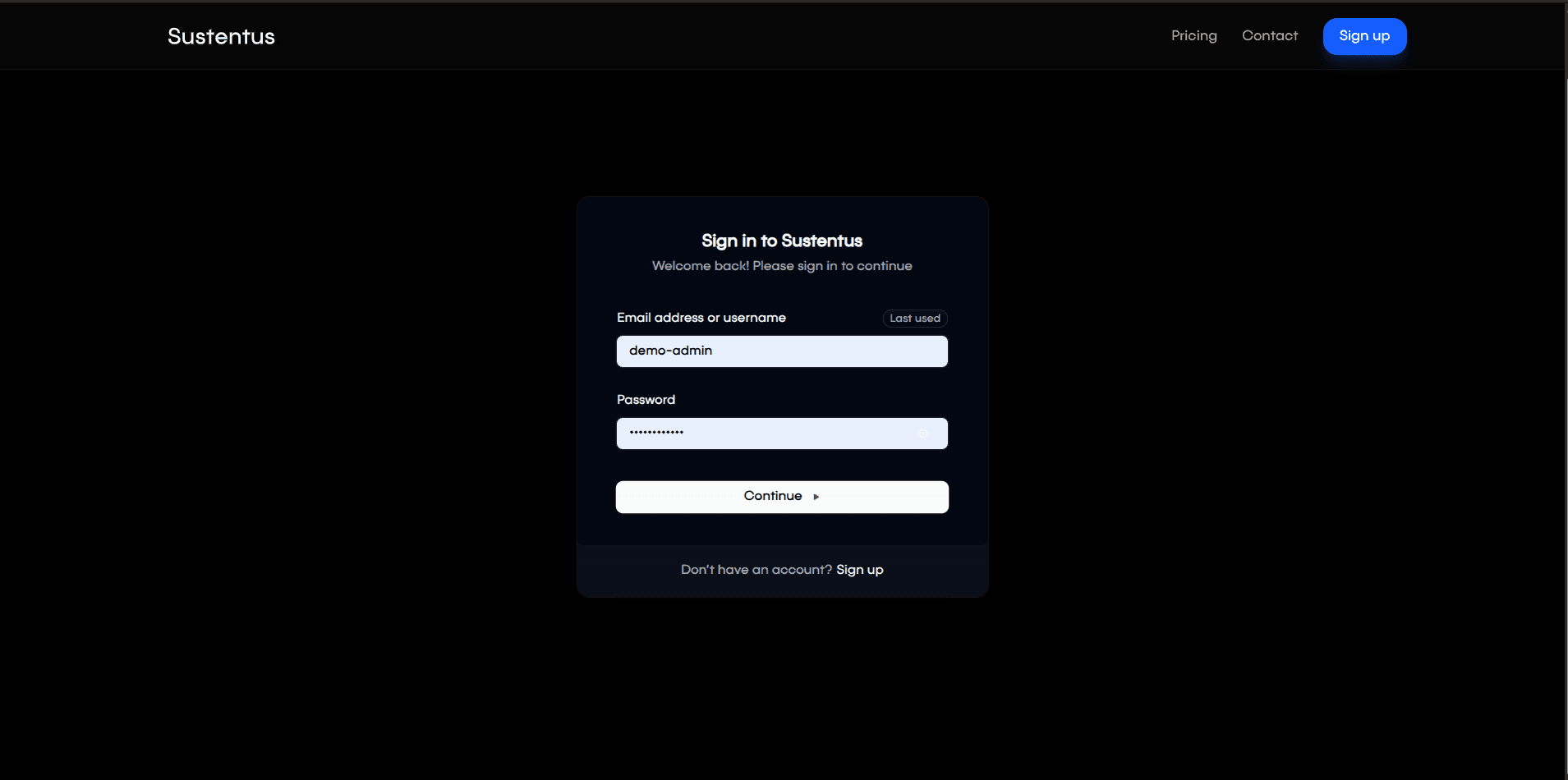
Presenter persona switching
A demo runs from one login: the admin account signs in — by password, or through the demo host’s Enter the demo control — and drives the existing View As control. The session is a genuine Clerk session on that account either way, so the admin-only gate, the same-org check and the View As audit trail are the platform’s, unchanged.
View As is one floating control fixed to the bottom right of the app shell, rendered by
apps/web/app/(app)/layout.tsx on every page including /onboarding/*. There is no sidebar entry
and no full-width banner: the control is both the way in and the way out. Idle it is icon-only and
reveals its label on hover and on keyboard focus; while emulating it stays expanded, showing the
emulated person’s name and role with a switch and an exit beside them.
The menu behind it is the same list on every tenant — the isDemo flag no longer changes it,
because a presenter and an admin want the same thing from it. Switching role is the point, so the
role comes first:
- The menu opens on the emulatable roles in canonical order (sales, CSM, SDM, expert, vendor, customer), each showing how many people hold it. Admin is not among them — the presenter already holds it, which is also why the way back is an exit rather than an emulation.
- Choosing a role replaces the menu with that role’s people, name-sorted, each entry showing the person’s name and email, with All roles to step back. The roster is only ever one role deep, so the list stays short enough to read in front of a room, with no submenu to open.
- Each role’s list ends with Role template only — the role’s permissions with nobody’s data behind them. It is permission testing rather than a walkthrough (own-scoped views render empty), and it is what keeps a role nobody holds from being a dead end.
- The same menu serves the idle control and the active one, so starting, switching person and exiting all sit behind the one trigger on every page.
- What the
isDemoflag still changes is the register of an active emulation: on a demo tenant the control reads as neutral presenter chrome saying “Presenting as”, and anywhere else as an amber audit warning that stays expanded, because there it sits over real customer data rather than a demo roster.
Every person is switchable as soon as pnpm demo:roster has run — the roster writes each seat’s
app-user row with its clerkUserId, and it is that field the control filters on. A sign-in is no
longer what makes someone appear here.
The list is the tenant’s directory, not the roster file. Anyone provisioned into the tenant afterwards — a customer created through the lead-create flow, say — appears among the roster’s people and looks no different, so reset and re-provision a tenant that has been demoed against before presenting from it again.
Canned agent mode
Onboarding and BRD qualification are the two streaming-LLM moments of a walkthrough, and the two
most exposed to a latency spike or a provider incident mid-sentence. On a tenant flagged isDemo
both chats replay a recorded transcript instead of calling a model, so the same conversation
runs the same way every time.
- Canned is the default. The two chat surfaces show a presenter switch (canned ↔ live). The
choice is a session cookie (
sustentus-demo-agent-mode) and a preference, never an authorisation: the server re-reads the tenant’sisDemoflag on every request and returnslivebefore it looks at the cookie, so a real tenant cannot reach canned mode by any cookie, header or body — and the switch does not render for it. - The writes are real. Tools that touch only the caller’s own tenant data execute for real, so a
canned walkthrough leaves a genuine BRD and a genuinely populated blueprint behind.
analyse_source— the one tool that fetches a website and runs a second extraction call — is served from the transcript, which is what makes the no-external-call guarantee hold end to end. - Skip to an approved BRD. In canned mode the BRD chat offers a skip control that approves the transcript’s own document straight onto the lead through the standard approval path, then lands on the workspace. Because it is the standard path, it also publishes the lead to the bid pool and fires the expert matcher — the same downstream activity a live approval produces.
- Editing the script is a PR: the transcripts are versioned JSON at
packages/services/src/ai/canned/transcripts/, schema-checked on first use, and a malformed one fails loudly naming the file rather than streaming a half conversation.
Two limits worth knowing before a walkthrough:
- There is no deny control on the BRD approval in canned mode — the replay steps by turn count and cannot branch, so only approve and skip render. Switch to live to demonstrate the deny path.
- There is no reset yet. A second onboarding run resumes at the end of the script rather than the greeting, and the blueprint completes for real, so don’t promise a back-to-back repeat.
Use Cases
The demo environment supports multiple user roles, each with different capabilities and access levels.
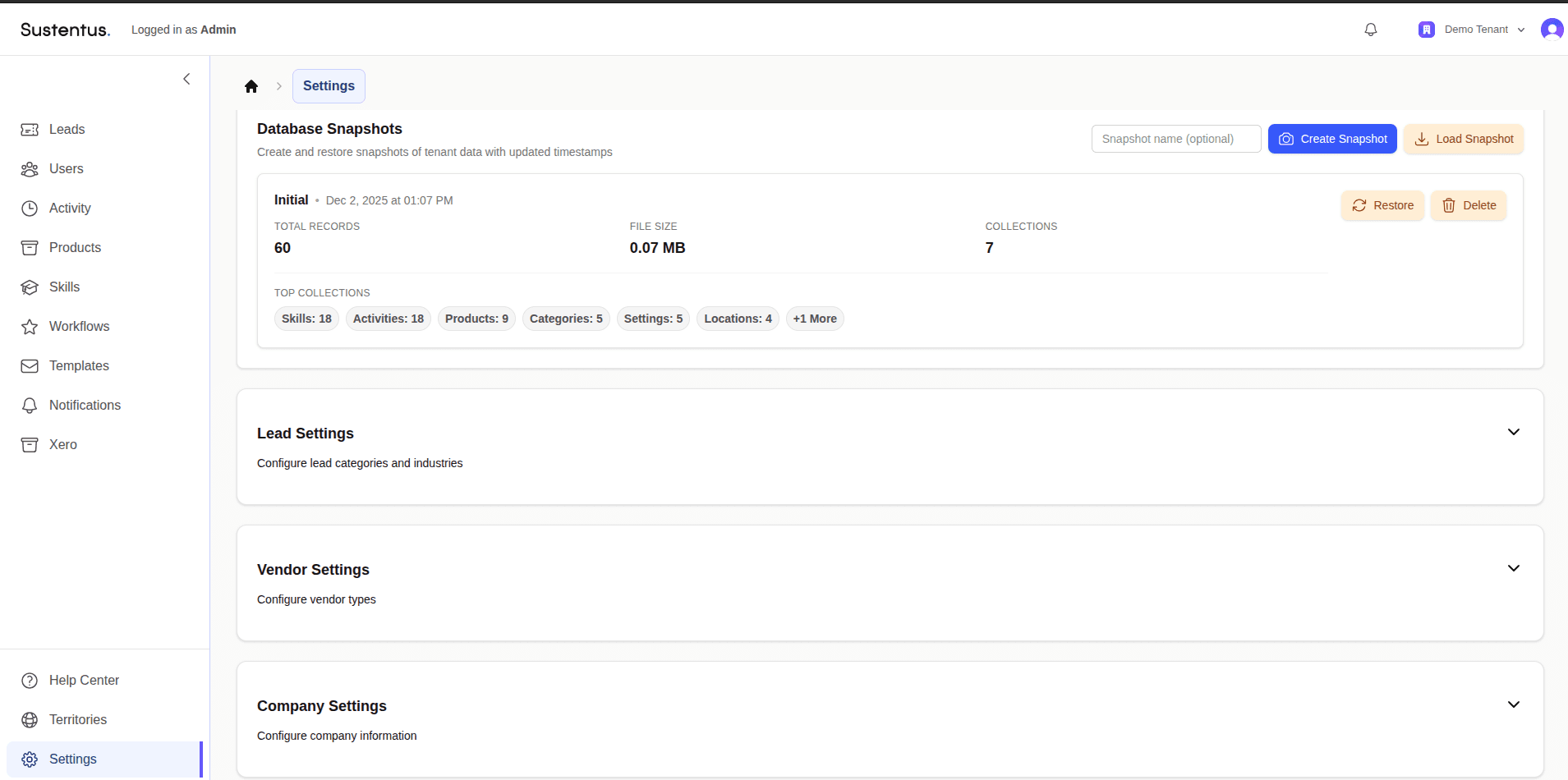
Admin Role
Full system access with administrative capabilities:
- Dashboard: System overview and analytics
- Settings: Tenant configuration and management
- Demo data: Populate the tenant with the storyline, or reset it back to the storyline
- User Management: Create and manage users across all roles
- System Configuration: Configure workflows and statuses
Manager/CSM/SDM Roles
Team and project management capabilities:
- Leads Management: View, create, and manage leads
- User Management: Manage team members and assignments
- Activity Tracking: Monitor team activities and progress
- Finances: View quotes, invoices, and financial reports
- Products: Manage product catalog
- CSAT: View and analyze customer satisfaction scores
- Skills: Manage skills and the services they support
[Screenshot placeholder: Manager dashboard showing leads and team overview]
Expert Role
Project execution and consultation capabilities:
- Bid Pool: View and bid on available projects
- Proposals: Create and manage project proposals
- Projects: Track active projects and milestones
- Invoices: Create and manage invoices
- My Knowledge: Personal knowledge base and resources
- My Team: Manage team members and collaborations
[Screenshot placeholder: Expert dashboard with bid pool and projects]
Customer Role
Self-service and support capabilities:
- Projects: View project status and details
- Finances: View quotes, invoices, and payment history
- Create Request: Submit new project requests
- Help centre: Access support resources
[Screenshot placeholder: Customer dashboard with project requests]
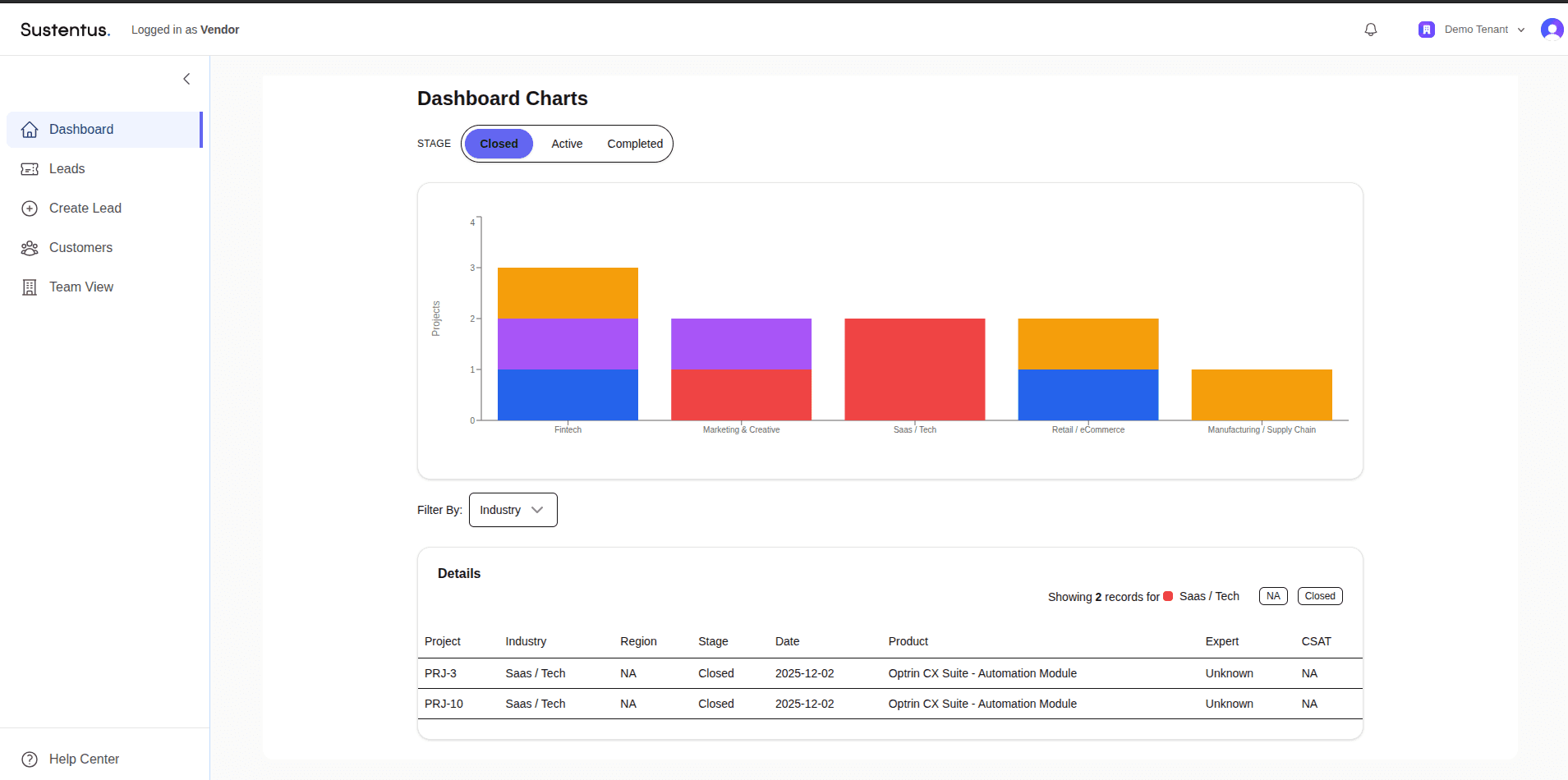
Vendor Role
Vendor management and procurement capabilities:
- Dashboard: Overview of CSAT metrics, customer performance, and regional statistics
- Leads: View, create, and manage leads
- Create Lead: Multi-step lead creation form
- Customers: Manage customer relationships and invitations
- Team View: Manage team members and territories
- Help centre: Access support resources
Demo Data Management
Populating Demo Leads
Admins can fill the current tenant with the demo storyline: one coherent world of customer companies, delivery experts and engagements spread across every stage of the service journey, plus a backdated history, so the platform renders fully populated for demos and visualisation.
The storyline is Orrery Software — a fictional mid-market B2B SaaS vendor whose services arm implements, integrates, migrates, trains and optimizes its own product for the customers who license it. That framing matches the ICP the marketing site addresses; the catalogue is the vendor’s own suites and modules (orrery core, orrery analytics, orrery connect, orrery field) rather than third-party platforms, and the services mirror the published menu. The world holds ten Northern-European customer companies across four sales regions and six languages, six delivery consultants, twenty-five current records covering all nine journey stages and worth €794k, and thirty-six completed projects worth €1,012k across eighteen months. It is the only storyline — there is no second world behind it and nothing to select between. Every company, person, project and number in it is listed on Demo tenant data.
Via Admin Demo Data
- Log in as an admin user
- Navigate to Configure > Demo data (
/admin/demo-data) - Click Populate demo data and confirm
The run takes a few minutes and writes, in order:
- The storyline’s people. Every seat is filled from the roster by email, and the run creates nobody: a seat with no Clerk-backed user aborts the run before its first write, naming every missing address at once. What each run does write is the attributes the storyline owns — a customer’s company, country, industry and vendor, plus their licence relationship (ARR, renewal date and licensed platforms); an expert’s position, bio, skills, products, languages and availability — every time, not only the first, so a person provisioned before the seed is still dressed. The licence fields and the expert profiles are written in a second pass after the catalogue, because both resolve against catalogue rows the same run has only just upserted. Identity is never written:
firstname,lastname,emailandavatarare Clerk’s, re-mirrored on the person’s next sign-in. The run reports which roster member filled which seat, on the same screen that triggered it. - A tiered catalogue, so a fresh demo shows the platform → product → service → skill hierarchy: platforms with their product modules, a shared generic service catalogue linked many-to-many to products, and skills linked many-to-many to services (no
skillCategory). Built idempotently (upsert by name, links via the idempotent link service), so re-running never duplicates catalogue rows or links; industry stays a flat taxonomy reused from the tenant. - The current pipeline — leads in each lead status (
pending,backlog,quotation_process,awaiting_confirmation,work_in_progress,delivered,survey_sent,completed, andqualified_out), each with the supporting records its stage implies: proposals, quotes, milestones, invoices, activity, status history, and lead-expert matches. Each lead is seeded along a valid product → service → skill path, so the catalogue and the cascade read coherently, and gets a real sequentialrequestIdviatenant.leadRequestSequence. - A backdated tail of closed engagements, dated in 30-day windows back from today — window 1 is the last 30 days. Without it every “vs prior period” comparison in the vendor analytics is flat and the retention cohorts have nothing to retain.
- CSAT records for the engagements that reached
survey_sentor beyond, bar a few deliberate exceptions that carry paid revenue and no response — that is what makesrevenueAwaitingCSATa real number rather than zero.
Nothing is random. Every company, person, engagement title, value and score is authored, and the variation that used to come from Math.random() now comes from a hash of each record’s own identity — so two runs against an equivalent empty tenant produce the same world, differing only in ObjectIds and the wall-clock the relative dates hang off.
Changing the storyline
Content and mechanics are separate. The generator (packages/services/src/db/services/demo-data/index.ts) holds no content; every value it writes comes from demoStoryline (demo-data/storyline/saas-vendor.ts), typed by demo-data/storyline/types.ts. Changing the demo world is therefore a data change, not a code change — edit that module.
There is one storyline. The old defaultStoryline / activeStoryline pair, the spare Calderon Technology Partners world, and the optional storyline argument on populateDemoLeads and resetDemoTenant are all gone: a second world nobody seeded was a second world nobody kept true, and the argument only made it possible to fill a tenant with a world the docs do not describe. The seeder and the reset read demoStoryline directly.
What has to move with a content change:
- Demo tenant data — the page publishes the world’s totals, and
demo-data/storyline/storyline.test.tspins them, so a value edited alone fails the suite. - The runbook’s persona table above, if
teamor the persona entries change. - The three narrative account keys at the top of
storyline.test.ts— the anchor, failing-CSAT and churn-risk accounts are named there.
Two rules hold: fictional only — no real prospect or client names, ever — and fully authored, so a reset reproduces the approved world exactly. A third is enforced by the matching engine rather than by convention: languages must line up. filterEligibleExperts treats language as a hard filter, so every account’s language has to be spoken by at least one expert’s languages, and a project’s assigned expert must share their account’s — otherwise the seeded world renders correctly but matches nobody.
The action targets the current tenant, is refused outright on any tenant not flagged isDemo: true (requireDemoTenant, the same gate the reset uses), and appends on each run — it does not clear or de-duplicate existing data, and raises no notifications, emails, or external side effects. There is no undo and no transaction, so a run that is interrupted part-way can only be repeated, not resumed. It is a visualisation aid, not a production data path; to return a tenant to the storyline, use the reset below.
Resetting the demo tenant
Seeding only ever adds. Every walkthrough leaves leads, CSAT responses, notifications and audit entries behind it, and re-seeding on top compounds them — so the demo world drifts further from the storyline with every session. The reset is the way back: it purges the tenant and re-seeds the approved storyline, so the world converges instead of accumulating.
It is hard-gated. resetDemoTenant calls requireDemoTenant before its first delete and refuses any tenant not flagged isDemo: true, so it can never run against a real tenant. It also refuses before purging when the tenant is missing a Clerk-backed admin, or any seat on the roster — otherwise it would empty a tenant the re-seed cannot then repopulate. That refusal is recorded on the tenant, so the missing addresses are readable at Configure > Demo data without going near the logs.
Via Admin Settings
- Log in as an admin user
- Navigate to Configure > Demo data (
/admin/settings/demo-data) - Click Reset demo tenant and confirm
The dialog names the tenant, and the run reports what it purged and what it re-seeded. It takes a few minutes — the purge is fast, the re-seed is the same few minutes as populating. The page also shows the last reset — who ran it and when — read from the tenant on load, so it survives navigation and is visible to anyone who opens the page (see Audit trail).
What gets purged
Everything tenant-scoped except an explicit keep-list. The classification lives in one place — packages/services/src/db/services/demo-reset/policy.ts — and is deny-by-default: a new tenant-scoped collection is purged unless someone deliberately keeps it, and a test fails if a new one is left unclassified.
Purged: leads and their status history, proposals, quotes, invoices, milestones, expert matches, CSAT responses, expert ratings, blockers, change control, action items, project messages, activity, notifications, onboarding blueprints, expert evidence, SDM outreach state, view-as audit entries — plus the tenant’s catalogue (services, platforms, products, skills and their links), which the seeder rebuilds identically.
What survives
- Identity. The reset makes no Clerk API call at all: the organisation, the six persona logins and their memberships are untouched. Their app-user records are kept because they carry a
clerkUserId, so each persona signs back in with the same identity. The storyline’s other people — customer contacts and delivery experts, which have no login — are purged and recreated by the seeder’s upsert-by-email. - Tenant configuration: tenant settings and integrations, role templates, permission overrides, SLA definitions and locations.
- Industry, because the seeder only ever reads it — it reuses whatever the tenant already has, so purging it would leave the re-seed with no industries to attach leads to. This is why industry is treated differently from the rest of the catalogue.
- CSM portfolio snapshots, so the CSM activation table keeps a prior day to compare against.
- Everything global. Collections with no
tenantId— the tenant record itself, action types, metric definitions — are unreachable from a tenant-scoped delete.
Lead request IDs come from tenant.leadRequestSequence, not from a counter collection, so the reset zeroes that field explicitly. Without it the IDs would climb on every reset and two runs would not produce the same world.
The reset is not atomic: it purges, then re-seeds, with no transaction. An interrupted run leaves the tenant purged or half-seeded — the remedy is to run it again, which converges.
Via cron
GET /api/cron/demo-reset resets every tenant flagged isDemo: true. It requires the CRON_SECRET bearer token (and fails closed if the variable is unset), so it is unreachable from a normal signed-in session. Targets come from the flag rather than from configuration, so no environment variable carries a tenant id.
The route is scheduled at 01:00 daily in apps/web/vercel.json, an hour before the 02:00 CSM snapshot job, so each morning’s snapshot describes the freshly reset world. Vercel fires crons against production deployments only — a preview deploy never runs it, which is why the first unattended firing is also the first real one.
It is sized for one demo tenant. resetAllDemoTenants resets its targets sequentially inside a single maxDuration budget, and one reset is itself a few minutes of sequential writes. That fits because the flag migration keys on a single DEMO_TENANT_CLERK_ORG_ID, so exactly one tenant carries isDemo: true — but nothing enforces it. Flag a second one and the invocation is killed mid-sweep, which is the one failure the audit trail below cannot show: the function dies before it can record anything, so lastReset still reads as the previous night’s success. Raise maxDuration or bound the sweep before a second demo tenant exists.
The preview environment does carry a tenant flagged isDemo: true (DEMO_TENANT_CLERK_ORG_ID is set there, and the flag migration runs against the preview database), so a manual call to this route against a preview deployment has a real target to purge. It is not a no-op there.
Audit trail
Every reset — from the admin button or the nightly cron — records itself on the tenant document as tenant.lastReset: who ran it (the acting admin, or the cron), when, the outcome, the totals purged and re-seeded, and the storyline that was seeded. A failed reset records the reason instead of the totals.
It lives on the tenant rather than in its own collection for one reason: the purge never touches the Tenant document, so the record survives the very operation it describes. It holds the latest reset only — a second reset replaces the first, and no history is kept.
Two properties are worth knowing when reading it:
- A refused reset writes nothing.
requireDemoTenantruns before the recording path, so a tenant that fails the demo guard receives no audit write either — the record can never become the cross-tenant write the guard exists to prevent. - Recording is best-effort. If the write fails, the reset’s own error is what the caller sees; the audit trail never masks the real failure behind a bookkeeping one.
The admin demo-data page reads it on the server, so /admin/settings/demo-data answers “who reset this, and when” on a cold load — another device, another person, the morning after the cron. Timestamps render in UTC and are labelled as such.
Client-session runbook
Before a walkthrough
- Sign in as the admin persona and reset the tenant (above). Allow a few minutes.
- Check the counts the run reports — a re-seed that created zero leads means the run did not complete.
- Open one vendor deep-dive and one persona dashboard to confirm the world renders populated.
After a walkthrough
- Reset again, so the next session starts from the storyline rather than from the last demo’s residue.
- If the reset errors, read the message — it names the collection or the missing persona — and run it again. Repeating is safe; the reset converges.
Technical Details
Demo Tenant Identification
Demo tenants are identified by the isDemo: true flag in the Tenant model
(packages/services/src/db/models/tenant.ts). The flag is written only by the tracked
migration 1786492800000-flag-demo-tenant.ts, keyed on DEMO_TENANT_CLERK_ORG_ID and run
against both the preview and production databases — never by hand. Standing the preview
world up end to end is the preview database runbook.
Reading and enforcing the flag, from @sustentus/services/server:
// Cheap boolean read (projects only the flag)
const isDemo = await tenantService.isDemoTenant(tenantId);

// Hard gate — throws for non-demo and missing tenants. Destructive demo
// operations (purge/reseed) must call this before touching data.
await requireDemoTenant(tenantId);
Next Steps
- Read the Demo tenant data reference — the people, companies and engagements the storyline seeds
- Explore the Applications documentation
- Learn about Development Workflows
- Check out Deployment Guides